
Today, our phones are essentially an extension of ourselves. We store everything from bank passwords to photos that would make our hearts skip a beat if someone saw them, turning the device into a veritable treasure trove of sensitive information . Therefore, we can't leave security to chance; it's crucial to make the most of every tool the system offers.
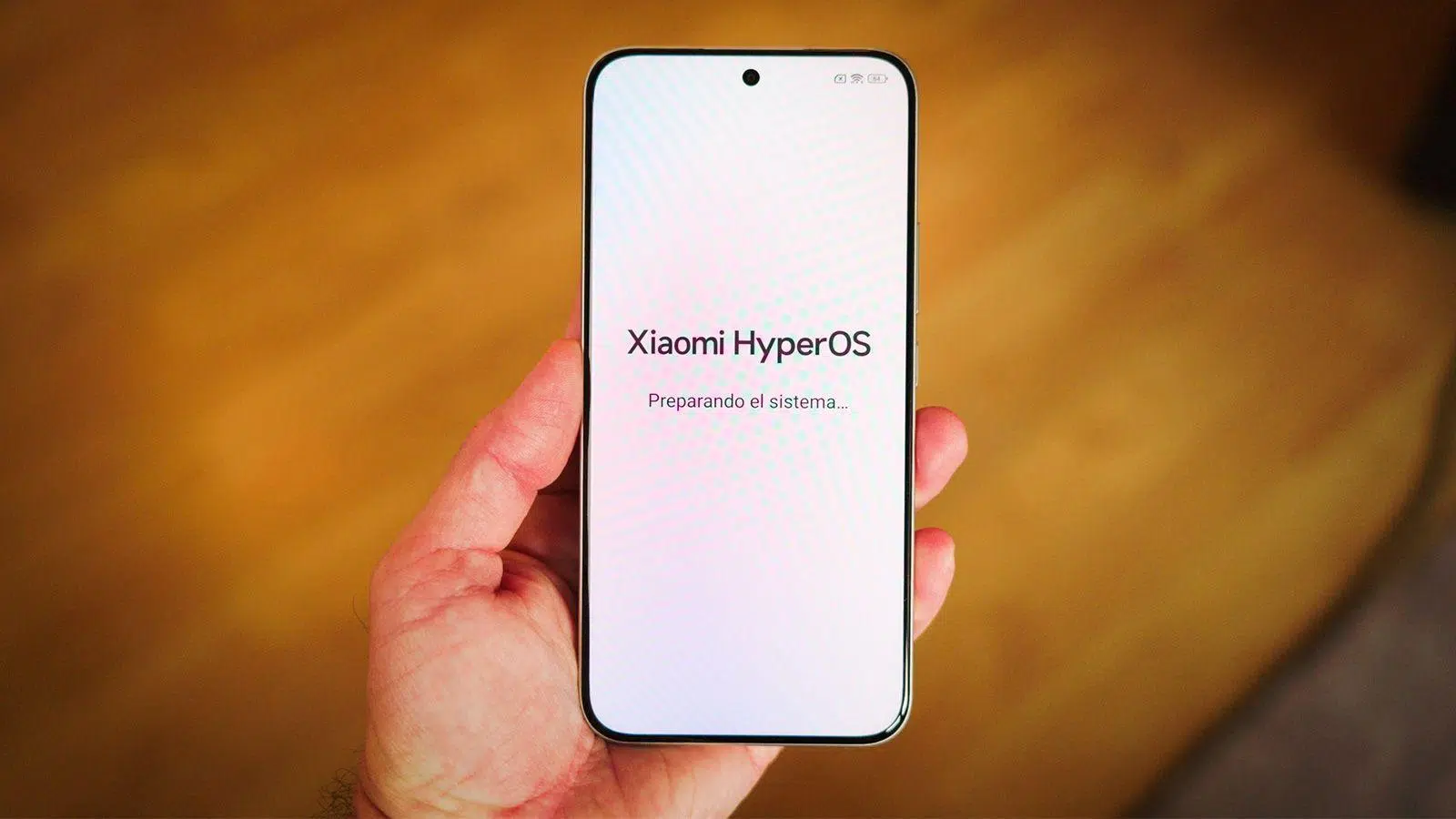
If you own a device with Xiaomi's HyperOS interface, you'll already know that it's here to bring order to the system. It's not just about making your phone look better or incredibly fast; it also hides powerful privacy settings that, if you don't know where to look, can easily get lost in the settings menu.

Repair Mode: A lifeline for technical service
There's nothing more unnerving than having to leave your phone at the repair shop because it's started malfunctioning, knowing the technician needs it unlocked to run the necessary tests. The dilemma is always the same: either you erase everything and risk losing your data, or you trust completely that the professional won't snoop through your photo gallery or private messages.
To solve this problem, HyperOS has implemented Repair Mode. This feature is truly ingenious because it creates a virtual partition that simulates a brand-new, factory-fresh computer. This allows a technician to tinker with the system and run diagnostics, while your actual data remains encrypted and completely invisible to anyone.

To set it up, simply navigate to Settings and go to the "About phone" section. Keep in mind, however, that for security reasons, the system deletes your biometric profile , so you'll need to reconfigure your fingerprint when you get your phone back. It's also essential to create a backup beforehand in case the technician needs to replace the storage chip and your data is lost.
Securing access with App Lock and Hidden Albums
Sometimes we don't need protection from a technician, but simply to prevent someone who asks for our phone to make a call from snooping through our WhatsApp . That's where App Lock comes in, a tool that puts a virtual lock on the apps you choose, requiring a fingerprint or pattern to access them.

To activate it, go to Settings, then to Apps, and select App Lock. Once set up, you can choose exactly which apps you want to protect, ensuring that no one can access your sensitive information without your explicit permission.
When it comes to photos and videos, the HyperOS Gallery has a trick up its sleeve: Hidden Albums. To access them, simply go to the Albums tab and firmly swipe down until the system prompts you for your password. It's the easiest way to keep private files out of sight of anyone who might glance at your photos.
Separating worlds with Second Space
Carrying two phones, one for work and one for personal life, is a real hassle. Luckily, Xiaomi offers the Second Space feature, which basically lets you have a virtual phone within your real phone. It creates two completely independent profiles that don't share any data with each other.

This is ideal for those seeking a clear separation between their work and personal applications. To activate it, open the Security app (the one with the green lightning bolt icon), find the Second Space option, and follow the steps to set up a new, private environment from scratch.
Full control over GPS and app permissions
Many apps ask for your exact location when they don't actually need it to function properly. To prevent GPS from tracking your every move, HyperOS lets you enable Approximate Location. By disabling Google's accuracy in the settings, apps will only know your general area, protecting your precise location.
Additionally, it's highly recommended to occasionally clean up your permissions manager. It makes no sense for a photo editing app to have access to your physical activity. You can review and revoke these permissions by going to Settings, then Apps, and finally to the Permissions section.
Extra performance and aesthetic tips
Aside from security, HyperOS lets us customize our phones. Through the Themes app, we can change everything from the control center color to the animations, giving our devices a unique look and preventing them from looking like everyone else's.
If you notice the system is running a bit slow, you can use virtual RAM. In Additional Settings, under Memory Extension, you can allocate virtual RAM to make applications open faster, but keep in mind that this will use up space on your internal storage.
For those who love multitasking, the sidebar is a gem. It's activated in Additional Settings, under Floating Windows, and allows you to do several things at once without constantly switching between applications.
We have an arsenal of tools ranging from creating virtual workspaces to hiding sensitive files and limiting GPS tracking. Implementing Repair Mode, managing app permissions, and leveraging app locking allows us to do this without sacrificing the confidentiality of our digital lives.
Table of Contents