

The new Macs with Apple Silicon processors are a revolution for the company itself and the rest of the tech industry. However, beyond all the positive aspects they've inherited from Apple's experience designing chips for its iPhones and iPads, the major problem with the M1 processors is that they limit the use of multiple external displays simultaneously. So let's look at some possible solutions for those who need to use several.
Why use multiple displays with a Mac

As a user, you probably won't see a problem with connecting multiple screens to a Mac , but for some it represents a significant setback because they have been doing it for years and have adapted their workflows to the use of two or even more external screens at the same time.
Therefore, now finding that they cannot use them as they did before with their previous equipment can be a great nuisance. Because we are not only talking about having more screens for the sake of it, but because in many cases they help to improve aspects such as the legibility of the documents. And it is that being able to work with panels of greater diagonal and resolution is always attractive.
In addition, there are situations in which it is also essential because while working on one you may be previewing content in another or monitoring anything else. This is why not being able to easily multi-display on the new Mac M1s can be so frustrating.
What computers have this limitation?

The Apple Silicon processor family has been growing steadily. The first models to receive this new ARM-based architecture were the MacBook Air, the 13-inch MacBook Pro, the Mac Mini, and the iMac. All of them featured the M1 processor. Later, Apple released its 14-inch and 16-inch MacBook Pro models, which included an improved version of the same SoC: the M1 Pro and the M1 Max. Finally, in early 2022, the Cupertino company took another leap into the professional arena with the Mac Studio, a product similar to a Mac Mini with significantly more features and available with the M1 Ultra, which, to date, is the most powerful processor in this family.
The screen limitation only affects Mac computers with the original M1 processor . All subsequent computers do not have this problem.
How many displays does each Mac with M1 processor support?
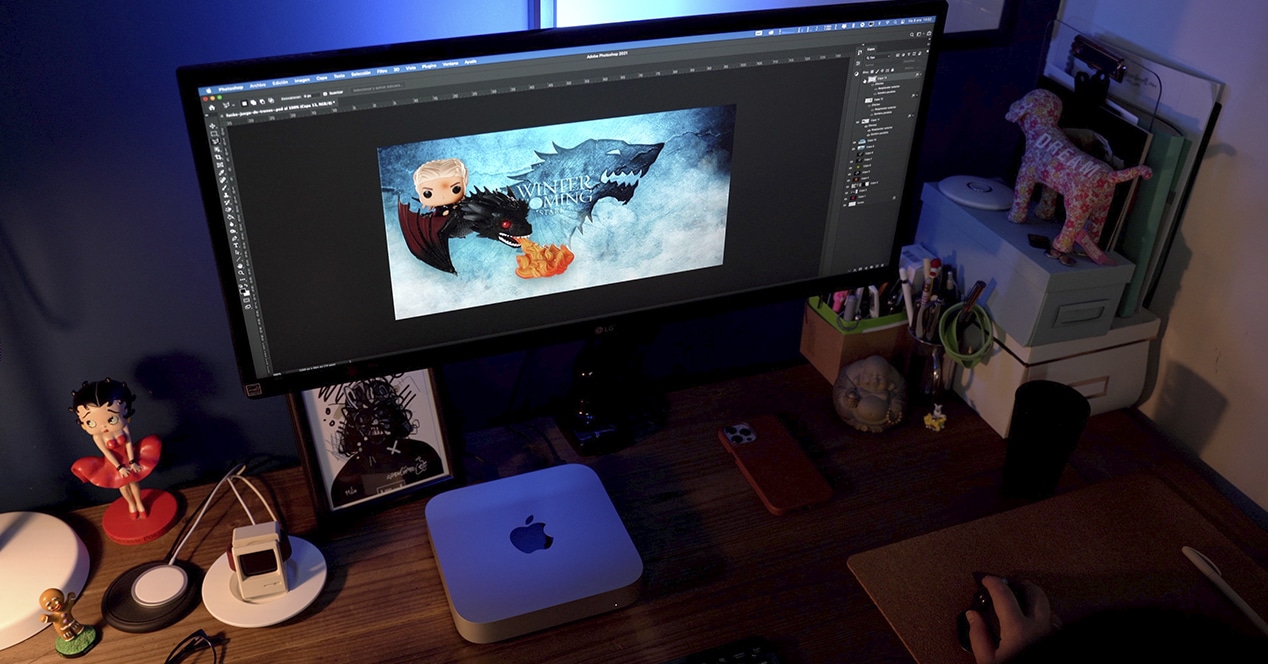
Taking the above into account, let's see how many screens current Macs are capable of managing. That is, the Mac Mini, MacBook Air, MacBook Pro and 24″ iMac, which are the only ones with an M1 processor. Well, there is also the new iPad Pro with the same chip, but since it is a device that works with iOS, it would not or should not be a concern for us. Although being able to get a full video signal from the iPad Pro is also a significant improvement in the user experience.
Returning to what interests us, the four current Macs that integrate the Apple Silicon M1 processor support this number of serial screens:
- Mac Mini: This equipment natively allows you to connect two screens through Thunderbolt connections or HDMI 2.0 output. These screens can be one with a maximum resolution of 6K at 60 Hz and another with 4K resolution at 60 Hz as well, or two 4K screens at 60 Hz. If you want to know a little more about this equipment, you can always take a look at the video that We dedicate it on our YouTube channel. We leave it to you right up here.
- El 13 MacBook Pro ″ It only supports one external display since it already has its own 2560 x 1600 pixel resolution display, so that maximum of two would already be covered. Basically, this computer has the same limitation as the MacBook Air.
- El MacBook Air with its 13″ screen and the same resolution as the Pro model (2560 x 1600 pixels) it also only supports one additional screen.
- iMac 24 ″ that the company recently presented integrates a panel with 4,5K resolution and, as is the case with laptops, it only admits an extra external screen.
For a large percentage of users, being able to use two screens is already more than enough. For the rest, the solution, until Apple manages (if it succeeds) to solve this aspect, is to use third-party solutions such as Display Link technology.
Teams with M1 Pro, M1 Max and M1 Ultra chip
In addition to computers with standard M1 chips, Apple released a few more advanced computers with M1 family chips a little later. These are the M1 Pro and M1 Max processors that we see in the 14-inch and 16-inch MacBook Pro, as well as the famous M1 Ultra, which is available in the maximum configuration of Mac Studio.
Other more powerful equipment and its limitations:
- MacBook Pro 14 and 16″: They can move 2 screens with the serial processor, that is, with the M1 Pro. If you get the M1 Max version, you can control up to four monitors with a single computer.
- MacStudio: This computer has Thunderbolt 4 technology and HDMI output. With the Mac Studio with M1 Max you can move up to 4 displays with 6K resolution at 60 Hz through the Thunderbolt 4 ports, plus an extra one via HDMI with 4K resolution. The M1 Ultra can also drive 5 displays simultaneously, but all of them can be used at 6K via Thunderbolt 4 / USB-C ports.
What limitations does the M2 processor have?

In mid-2022, Apple launched its new generation of processors, amid some controversy over the sudden price increase of its products. The M2 debuted in a redesigned MacBook Air and a 13-inch MacBook Pro that didn't seem like a good fit for Cupertino's product lineup. In essence, the M2 has several improvements, but it is still an inferior product to the M1 Pro and the rest of the first generation solutions that are above the M1.
Well, the power increase between these two generations doesn't seem to have changed anything. Computers with the M2 processor still have the same limitation as before. According to Apple, M2 computers officially support only one display with a maximum resolution of 6K at a 60Hz refresh rate . Therefore, if we want to use more than one display on our computer, we'll have to resort to the workarounds we used with the M1. Once again, this limitation seems to stem from a desire to differentiate their products between casual and professional users, rather than from a technical issue, as one might initially think.
Another problem associated with these models is their controversial memory management. To save costs, Apple has decided to use a single memory chip in the MacBook Air and MacBook Pro 13″ models as standard. In computers with M1, the 256 GB model had two chips. The result of using a single drive is a noticeable reduction in the computer's write rate. This, added to the fact that it still only has 8 GB of RAM, makes the decision quite controversial. In some very specific cases, the idea of using a single memory chip can affect the performance of the computer. However, it is not something that the average user will notice.
How to connect more than one display to a Mac with M1 (or M2)

Apple promised to fix the problem of not being able to connect two external displays via the Thunderbolt ports on its computers. Until that happens, the easiest way to connect multiple monitors to a Mac with M1 is to use DisplayLink.
This technology allows one or more video signals to be output through USB connectors. Of course, to achieve this it is necessary to install driver software and have an adapter that, for example, extracts a video signal from the USB C connector via USB C as well or HDMI, Display Port, etc.
The process of configuring and using these adapters is very simple:
- Connect the adapter with support for Display Link to you Mac
- Download and install the utility Display Link Manager
- Once done you will see in the top bar of Finde a new icon from which to manage the connected screens
- In this icon you can activate or deactivate the video signal as well as apply some additional settings
That's it, it's that easy to be able to connect not one but several external displays to your Mac. Of course, also keep in mind that this technology currently offers some limitations. The most important is that you will not be able to make use of features such as screen rotation. Others that can also affect and must always be kept in mind are the maximum resolutions that can be managed with these adapters. Because you may not be able to connect multiple 4K displays and may have to limit yourself to 1080p at most.
Display Link Compatible Docks and Adapters
Let's say you're one of those users who needs to connect multiple displays to their new Mac M1, more than two to be exact. The options that you would have are several, although the most interesting may be these here. Although keep in mind that manufacturers such as CalDigit among others warn that although they can work, natively they are not obliged to do so and that future system software updates may render them unusable or you will have to wait for new driver updates for Display Link .
CalDigit TS3+
See offer on AmazonIn itself, this CalDigit adapter or port base is one of the most interesting on the market due to its construction quality, connections, etc. The only problem is that it is not particularly cheap, but it greatly improves the experience as it also includes details such as a card reader, audio input and output, etc.
OWC Thunderbolt 3 Dock
See offer on AmazonThis OWC dock offers the possibility of outputting two video signals through one of the Thunderbolt 3 connectors on the back and other mini Display Ports that it also has.
pluggable
This is another system that allows you to circumvent the limitation of Apple Silicon equipment. There are several models for sale, and we will have to choose one or the other depending on the equipment we have and the number of screens we want to use.
Plugable is a high-quality, professional solution for getting the most out of devices like the MacBook Air M1 and M2. It's a DisplayLink-compatible vertical docking station that allows you to connect the M1 processor to two 4K displays.
Furthermore, Plugable's solution also addresses other common problems with Apple computers, such as the lack of ports. The Plugable dock features six USB 3.0 ports, a headphone jack, an Ethernet port for an RJ-45 cable , and two split video outputs. Each output can accommodate either an HDMI or DisplayPort cable , allowing you to connect up to two 4K displays. The device is priced at around $180 and, for now, is only available for purchase online within the United States.
Other options
Alongside these docks, both highly recommended by Mac users, there are many other options available. The DisplayLink website has a section where you can view all the available universal docking stations, as well as USB to HDMI, DVI, or DisplayPort video output adapters. They also clearly indicate the maximum resolution each supports, ensuring you're ready to expand your workspace with the new Macs featuring the M1 chip.
Connect an iPad to your Mac
There's one last option to further expand your desktop space with an original Mac M1: using a Apple tablet alongside it. This is a cheaper alternative if you already own one of these devices and makes things much easier when your desktop becomes too small. The feature that enables this is called Extended Display , and it can be used in two different ways, at least since the macOS Monterey 12.4 update:
- With the screen extended we turn the iPad simply into an extension of the desktop of the Mac, with the same wallpaper and with access to the applications installed on the computer as well as to the upper notification bar. It's like having a monitor next to you, located to the left or right depending on what you prefer.

- Or, resort to the so-called Universal Control that does not turn the iPad screen into an extension of the Mac, but instead It makes it easier for us to control iPadOS with the same mouse and keyboard that we use with the computer. In both cases, and if we are to synchronize data in the cloud (iCloud), we can work quickly transferring information from one OS to another easily without having to buy and connect an external monitor.
Links to Amazon in this article are part of our agreement with your Associates Program and may earn us a small commission on their sale (without affecting the price you pay). Even so, the decision to publish and add them has been taken, as always, freely and under editorial criteria, without attending to requests from the brands involved.
Table of Contents
- 1 Why use multiple displays with a Mac
- 2 What computers have this limitation?
- 3 How many displays does each Mac with M1 processor support?
- 4 What limitations does the M2 processor have?
- 5 How to connect more than one display to a Mac with M1 (or M2)
- 6 Display Link Compatible Docks and Adapters
- 7 Connect an iPad to your Mac